
Online Music Lessons Across US Time Zones: How to Schedule
A straightforward guide to comparing Eastern, Central, Mountain and Pacific local times before arranging an online lesson.
By Dr Banerjee ·
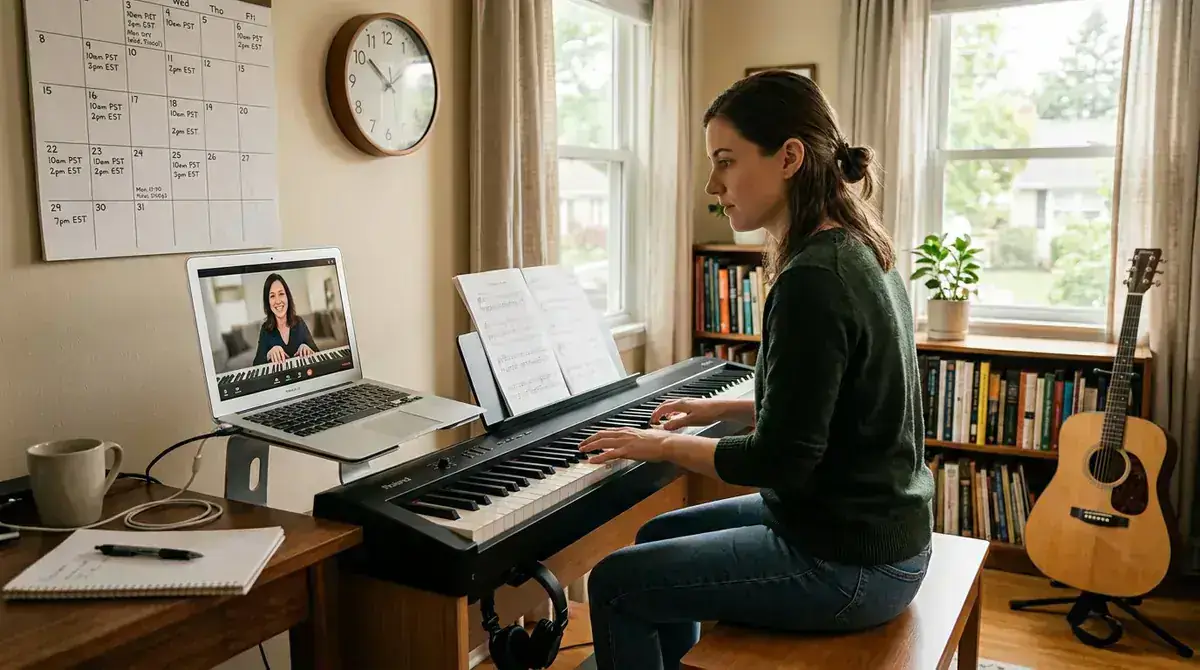
Convert one time carefully, then save both zones
Online music lessons across US time zones can be easier to coordinate when every message names the time zone as well as the clock time. As a simple continental-US example, a 6:00 PM Eastern start corresponds to 5:00 PM Central, 4:00 PM Mountain and 3:00 PM Pacific. Exact location and daylight-saving dates still matter.
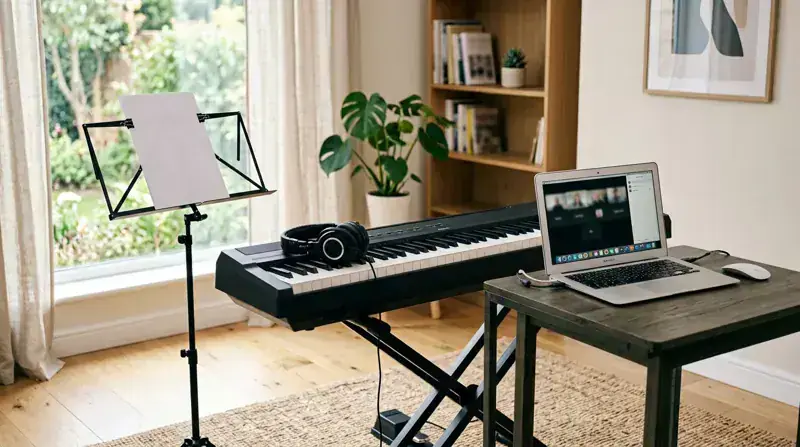
Write the agreed time in the student’s local calendar and include the zone abbreviation in the event title. If family members travel or a student moves between states, check the local time again instead of assuming the old conversion remains right.
Pick the teacher's advertised slot and convert it once, then write both versions into your calendar entry — for example "6:00 pm ET / 3:00 pm PT" — instead of converting it again each week. Repeated manual conversion is where most missed lessons come from, particularly the ones that fall on the weekend a time zone changes.
Name the entry clearly enough that a family member could act on it: instrument, teacher, and the local time first. If a lesson is shared between two adults, put both phone numbers in the note. This sounds like administration, and it is — but it is the twenty minutes of administration that prevents a term of confusion.
Use the calendar to account for family routines
Compare the lesson time with school dismissal, dinner, work shifts and other activities. A technically available time may not be a comfortable time for a child or adult. Ask everyone who needs to be present before confirming a regular weekly slot.

When clocks change for daylight saving, calendar apps usually adjust events tied to a named time zone. A manually typed fixed time may not. Review the next lesson date after a clock change and contact the teacher if anything looks different.
A lesson at 4:00 pm Eastern is 5:00 am in India, which is a normal working hour for a teacher and an impossible one for a household with school runs. The reverse is just as real: a teacher in the US teaching a student in India ends up with evening slots that collide with dinner. Whoever has the less flexible day should set the time.
Before booking, look at the three fixed points of the week — school pickups, work meetings that cannot move, and the one evening activity the family does together. Choose a slot that touches none of them. A lesson that requires renegotiating dinner every week will be canceled within a month, however good the teaching.
Confirm the local time before you book
In a scheduling message, include the city or time zone and the preferred day. The teacher can then confirm whether a slot is available. A sample conversion is a planning aid, not a promise that a specific hour is open; lesson times remain subject to available slots.
Compare the monthly class options only after checking the schedule that works for your household. The plan prices and class counts are on the fees page; city information is available from the US cities page.
Ask for the confirmation in your own local time, not the teacher's, and check the date as well as the hour. A booking confirmation that says "Tuesday 6 pm" without a time zone is the single most common source of confusion in online lessons, and it costs nothing to reply with "confirming: Tuesday 3 pm Pacific, the 14th".
Keep the confirmation somewhere you will see it — a pin, a starred message — rather than in a long email thread. If the schedule changes, delete the old confirmation rather than leaving two versions in circulation.
Convert one option, then confirm daylight saving
Choose a possible lesson time in one zone and convert it to the student’s local clock before agreeing. Most US regions change clocks seasonally, while some places follow different rules. A calendar invitation using a city-specific time zone helps avoid a one-hour mistake later.
- Include the date, not only a recurring clock time, when comparing schedules.
- Check both calendars after a daylight-saving change.
- Confirm the final slot directly because lesson availability can vary.
Protect the time from a busy US week
A time that looks open on a calendar may sit between school pickup, work, traffic, or dinner. Leave a small buffer before a video lesson so the student can get an instrument ready and settle in. If the week changes, ask early about another available slot.
- Compare school or work commitments before selecting a weekly pattern.
- Use the same calendar zone on both sides of the booking.
- Keep a backup option in mind instead of assuming every hour is available.
Recheck recurring times when the calendar changes
A weekly lesson may appear at a different local hour after a daylight-saving transition. Check the calendar invitation using the city-specific time zone rather than relying on a remembered offset. If the student travels or changes locations, tell the teacher which local time should be used for the next meeting.
- Open the next dated calendar event after a clock change.
- Confirm the city or time zone shown in the invitation.
- Message the teacher if travel changes the student’s local time.
Build a small buffer around the video lesson
A lesson slot is easier to keep when it does not begin in the middle of pickup, work, or another appointment. Leave a few minutes to set up the instrument, open the call, and settle in. This buffer also helps families notice early if a schedule needs to be adjusted.
- Check the commitments immediately before and after the proposed slot.
- Set up the device and instrument before the meeting time.
- Keep one alternate window ready to discuss if the week becomes crowded.
Related: Find city lesson pages and View monthly fees.
Frequently asked questions
Can lessons be discussed in my local time zone?
Yes. Share your city or time zone and a few possible windows. The teacher can discuss an available slot using your local time, then confirm the date and recurring schedule directly. If a time looks ambiguous, write the zone beside it and confirm the date together.
Do all US states change clocks on the same dates?
Many US areas follow seasonal clock changes, but some regions use different rules. Use the specific city and lesson date when converting, especially around a clock-change weekend. Keep the confirmed time in one shared calendar to reduce confusion across devices.
Are lessons available at every hour of the day?
The website describes broad scheduling flexibility, but an exact time depends on open lesson slots. Ask about your preferred windows and confirm the agreed time rather than assuming a particular hour is guaranteed. Ask before changing a recurring slot, since availability depends on the teacher’s schedule.
Ready to explore lessons?
Compare the monthly fees and plans or learn what happens in the free introductory session.